Nonprofit Project Management Tool Selection Checklist
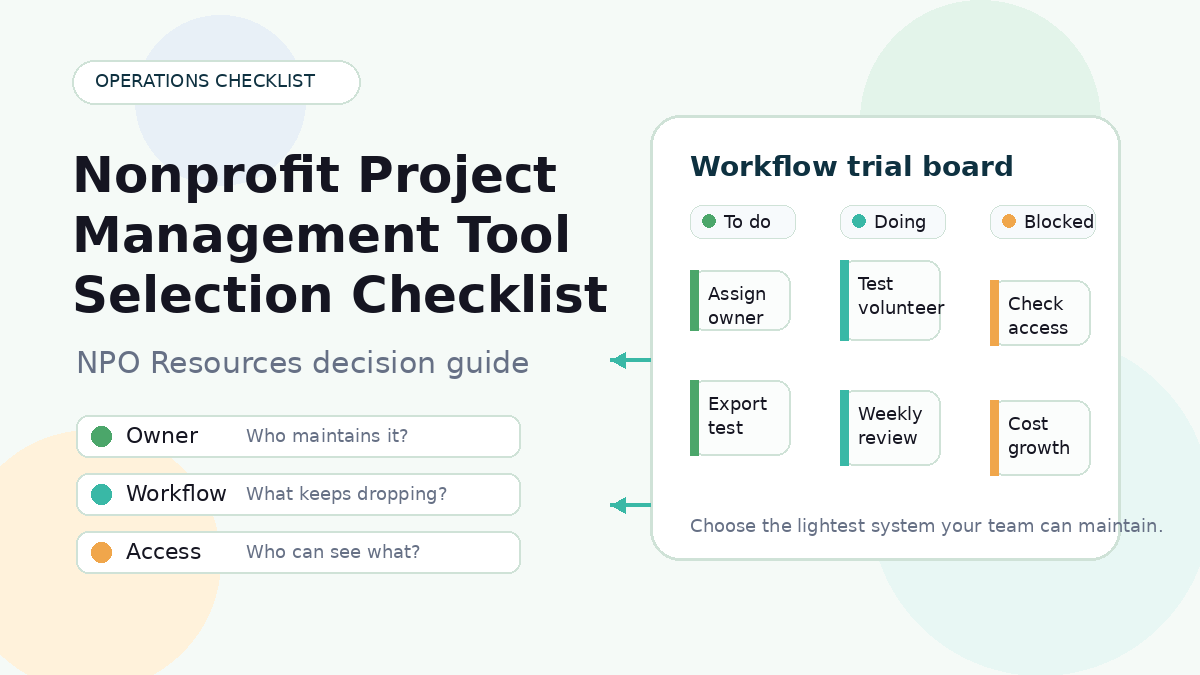
Neutrality note: NPO Resources does not rank or endorse project management tools. This checklist is designed to help nonprofit teams decide what to verify before choosing, keeping, or switching a task coordination system.
Nonprofit work often gets scattered across email, meetings, chat messages, spreadsheets, calendars, and memory. A project management tool can help, but only when the team has a clear workflow it can actually maintain. The right question is not “Which app has the most features?” The better question is: what work keeps getting dropped, who needs to see it, and what system will people really use each week?
This NPO Resources checklist is one of our practical nonprofit resources for small teams that need a calmer way to compare tools. Use it to decide whether you need a dedicated platform, a lighter shared task board, or simply a clearer internal habit before you sign up for new software.
For provider-level research inside this workflow cluster, review resource pages for connected collaboration, identity, form, and scheduling systems such as Slack for Nonprofits, Google for Nonprofits, Microsoft for Nonprofits, Jotform, and Calendly. Verify current roles, guest access, exports, notifications, integrations, billing, and nonprofit eligibility directly with each provider.
First decide whether you need a dedicated tool
A dedicated project management app is not always the first answer. A small nonprofit with a stable team, a few recurring tasks, and simple permissions may do fine with a shared checklist, spreadsheet, or calendar. Adding software too early can create another place to update without solving the actual coordination problem.
A dedicated tool may be worth testing when ownership is unclear, deadlines keep slipping, tasks move between staff and volunteers, leadership needs status without chasing people, or sensitive work requires clearer access control.
Software cannot create capacity, decide priorities, or replace a short weekly review. It can only make the work easier to see, assign, update, and follow through on.
Take a 30-minute workflow inventory
Before comparing tools, write down the work you are trying to make easier. This keeps the conversation grounded in real nonprofit operations instead of demo features.
- The problem to reduce: missed deadlines, unclear ownership, too many status meetings, volunteer handoff gaps, grant tracking confusion, or event planning chaos.
- First workflows to test: choose one to three realistic examples, such as a fundraising campaign, volunteer onboarding sequence, program delivery checklist, board report cycle, or grant deadline process.
- Primary owner: name the person or role responsible for setup, cleanup, permissions, training, and weekly review.
- Backup owner: name who can maintain the system if the main owner is unavailable.
- Role map: staff, volunteers, contractors, partners, board viewers, and administrators may need different levels of access.
- Information that should not go into the tool: unnecessary beneficiary details, personnel notes, donor-sensitive information, credentials, safeguarding details, health information, or confidential case notes.
- Device and access needs: phones, shared computers, assistive technology, language needs, low bandwidth, and occasional volunteer use.
- Budget and growth assumptions: current users, likely future users, guest access, storage, automation, reporting, onboarding, support, and renewal cost.
- Success signal: define what would improve in 60–90 days, such as fewer missed handoffs, clearer ownership, faster board updates, or less work stuck in one person’s inbox.
Project management tool selection checklist
Use the sections below as a practical review tool. You do not need the platform with the longest feature list. You need the lightest system your team can maintain and trust.
1. Purpose and scope
- ☐ We can explain the main problem the tool should reduce.
- ☐ We have chosen one to three starting workflows instead of moving every process at once.
- ☐ We know what will stay outside the tool.
- ☐ We have simple status labels that people will understand.
- ☐ We have a clear definition of “done” for each workflow.
- ☐ We know when a shared sheet or simpler checklist would be enough.
2. Ownership and weekly practice
- ☐ One person or role owns the system after launch.
- ☐ A backup owner can manage access, templates, and cleanup.
- ☐ Every active task has one accountable owner.
- ☐ The team has a short weekly review habit.
- ☐ The tool will not depend on one expert volunteer who may leave.
- ☐ Handoffs are visible enough that work does not disappear in private messages.
3. Ease of use and onboarding
A powerful tool is not helpful if new staff or volunteers cannot understand their next action. Test the actual onboarding experience, not only the administrator’s view.
- ☐ A new user can accept an invitation and find their assigned work without coaching.
- ☐ The tool works acceptably on phones and common browsers.
- ☐ A short-term volunteer can understand what to do and where to ask questions.
- ☐ The interface does not require every user to learn too many fields, views, or rules.
- ☐ We have a one-page internal guide for naming, statuses, owners, and due dates.
- ☐ We have considered accessibility needs, keyboard use, readable text, contrast, zoom, and assistive technology.
If volunteer coordination is one of your core workflows, you may also want to review volunteer recruitment and skills-based support tools for nonprofits.
4. Projects, tasks, and handoffs
- ☐ Tasks can show one owner, collaborators, due date, status, and next step.
- ☐ Recurring events, campaigns, programs, grants, or board cycles can be represented clearly.
- ☐ Handoffs between staff, volunteers, and reviewers are visible.
- ☐ Comments and updates do not hide important decisions.
- ☐ Completed work remains findable when someone needs context later.
- ☐ The team can tell the difference between blocked, waiting, in progress, and complete work.
5. Volunteers, guests, and permissions
Do not rely on labels like “guest,” “viewer,” or “limited access” without testing. Permission behavior can vary by tool, plan, workspace, project, and role.
- ☐ We tested separate accounts for staff, volunteer, partner, board viewer, and administrator roles.
- ☐ We know what each role can view, edit, share, invite, download, delete, and export.
- ☐ We know which guests or viewers count toward billing.
- ☐ We can remove a volunteer without losing important task history.
- ☐ Sensitive work is separated instead of relying on assumptions about item-level privacy.
- ☐ Offboarding is documented for staff, volunteers, contractors, and board users.
6. Files, comments, and source of truth
- ☐ We know whether final files live in the task tool, shared drive, CRM, grant folder, or another approved system.
- ☐ File links keep the right permissions when shared in tasks.
- ☐ Important decisions are captured where future staff can find them.
- ☐ The tool does not encourage people to store passwords, private donor details, or sensitive case information in comments.
- ☐ Search works well enough for a staff member who did not create the original task.
7. Notifications and workload
Too many notifications can make people ignore the system. Useful alerts should lead to action, not noise.
- ☐ Users can adjust notifications without missing critical updates.
- ☐ The team knows which updates need alerts and which can be handled in a digest.
- ☐ Urgent issues have a separate escalation path.
- ☐ Everyone does not need to watch everything.
- ☐ A normal week of reminders feels manageable to staff and volunteers.
8. Recurring work and automation
- ☐ We know whether templates are enough before adding automation.
- ☐ Any automation has a named owner.
- ☐ We tested what happens when an automation fails.
- ☐ The tool shows logs, alerts, or recovery steps for automated actions.
- ☐ A human can pause or correct automated work.
- ☐ Recurring tasks do not create duplicate clutter no one reviews.
9. Status and reporting
Reports should help people make decisions. Task counts are not the same as mission impact, staff performance, or program quality.
- ☐ Leadership can see upcoming milestones, blockers, risks, and decisions needed.
- ☐ Reports avoid unnecessary sensitive detail.
- ☐ Board or leadership views are easy to explain.
- ☐ The team can export a status view if needed.
- ☐ Reporting supports capacity conversations instead of surveillance.
10. Integrations and intake
An integration may be one-way, delayed, plan-limited, or dependent on field mapping. Test real workflows with non-sensitive records before relying on a connection.
- ☐ We know which systems create new tasks: email, forms, calendar, CRM, donation platform, scheduling tool, or chat.
- ☐ We tested direction, timing, duplicate behavior, failures, retries, and alerts.
- ☐ One person owns failed syncs or broken intake paths.
- ☐ We know what data should not move between systems.
- ☐ We confirmed which integrations are included in the quoted plan.
For adjacent workflow decisions, see online form and scheduling tools for nonprofits.
11. Cost and growth
- ☐ We have a dated quote for the exact plan and expected users.
- ☐ We know whether guests, viewers, contractors, or volunteers count toward cost.
- ☐ We modeled growth for the next year, not only today’s team size.
- ☐ We included onboarding, support, integrations, automation, storage, reporting, and renewal.
- ☐ Any nonprofit discount or special eligibility is confirmed in writing.
- ☐ We included staff time needed to maintain the system.
12. Security, continuity, and exit
- ☐ The organization owns the workspace, not one personal account.
- ☐ Administrative access is limited and recoverable.
- ☐ We reviewed roles, authentication options, access removal, and data handling in proportion to risk.
- ☐ We know what information should never be placed in tasks or comments.
- ☐ We tested an export before committing.
- ☐ We know what is missing from exports, such as comments, files, history, rules, dependencies, templates, or archived work.
- ☐ We understand what happens to data after cancellation.
If project work connects to grant planning, pair this checklist with grant research and prospecting tools for nonprofits so research, deadlines, and follow-up responsibilities do not get mixed together.
Questions to ask before a demo or trial
- Can you build one of our real workflows from intake through completion?
- Can you show what a staff member, recurring volunteer, short-term volunteer, partner, board viewer, and administrator can see and change?
- Which user types are billable in this exact configuration?
- Which demonstrated features are outside the quoted plan?
- How do assignment, mentions, due-date changes, overdue work, and digest notifications behave?
- What happens when an automation fails, and who is alerted?
- Can we create a weekly status view without exposing restricted details?
- How do file permissions and task permissions interact?
- What happens when an integration fails?
- What does pricing look like now, at two growth scenarios, and at renewal?
- What happens when we remove a test volunteer?
- What exactly is included or omitted in an export?
A small trial beats a polished demo
Use fabricated or approved non-sensitive data. Create ten to fifteen tasks, two staff users, one volunteer, one viewer, one recurring deadline, one approval, one file link, and one blocker. Then test a normal week.
- Could a new user understand the next action?
- Did updates happen without repeated reminders outside the tool?
- What work still stayed manual?
- What created confusion or notification noise?
- Did permissions behave as expected?
- Which needs required a more expensive plan?
- Who would maintain the system after launch?
How to decide without ranking tools
Instead of naming one universal answer, create a simple evidence sheet for each tool you test. Ask whether the essential workflow was demonstrated, whether the exact plan includes the needed behavior, whether representative users found it easy enough, what manual work remains, what access or privacy concerns remain, what is unclear, what the cost looks like as you grow, and who would own the system internally.
A volunteer-led organization and a staffed multi-program nonprofit may reasonably choose different systems. The goal is not the most powerful platform. The goal is a coordination habit your organization can sustain.
Related operations and workflow resources
Use these related NPO Resources pages when project management decisions connect to account continuity, form intake, scheduling, CRM, fundraising, volunteer coordination, grants, or communications work.
- Nonprofit Data Backup and Account Recovery Checklist — review account ownership, backup owners, exports, access removal, and continuity reviews.
- Nonprofit Online Form and Intake Workflow Checklist — review form routing, response ownership, retention, and handoffs before turning submissions into tasks.
- Online Form and Scheduling Tools for Nonprofits — compare form and scheduling tools that may create follow-up tasks or bookings.
- Small Nonprofit CRM Selection Checklist — review CRM ownership and supporter data before tying tasks to donor workflows.
- Nonprofit Donation Page Checklist — use this when project tasks involve online giving, receipts, analytics, or launch checks.
- Nonprofit Email Newsletter Selection Checklist — compare communication workflows when tasks depend on campaigns, lists, and approvals.
- Volunteer Recruitment and Skills-Based Support Tools for Nonprofits — review volunteer workflows, guest access, and handoffs.
- Grant Research and Prospecting Tools for Nonprofits — review research, deadlines, prospect tracking, and follow-up responsibilities.
Provider resource pages to review
For provider-level research, review the NPO Resources entries for Slack for Nonprofits, Google for Nonprofits, Microsoft for Nonprofits, Jotform, and Calendly. Verify current workspace ownership, roles, guest access, exports, notifications, integrations, billing, and nonprofit eligibility directly with each provider.
Frequently asked questions
Not always. A shared checklist or spreadsheet may be enough for a small, stable workflow. A dedicated tool may be worth testing when tasks are repeatedly missed, ownership is unclear, volunteers need structured handoffs, or leaders need status without chasing people.
Both can track work. A fuller project management tool may add milestones, dependencies, workload views, reporting, automation, or portfolio-level status. Those features can help, but they also add setup and maintenance.
Possibly, if permissions and workflows stay clear. Separate spaces or systems may be safer when the work has different sensitivity, users, or reporting needs. Test the actual roles before combining everything.
Often, but permission labels vary. Test what each volunteer role can view, edit, share, invite, download, delete, and export. Also confirm whether guest or volunteer accounts affect billing.
Start with a few workflows, keep fields and statuses simple, define one intake path, name an owner, and hold a short weekly review. If people still work around the tool, ask what feels confusing or unnecessary before adding more features.
Avoid unnecessary sensitive beneficiary, personnel, donor, health, immigration, safeguarding, case, credential, or financial details. Use the organization’s approved systems and keep task descriptions to the minimum information needed.
Next step: choose one painful workflow, define three must-work scenarios, and run a small trial with non-sensitive test data. A project management tool should make coordination easier, not create another system your nonprofit has to chase.