
Someone on your team set up Google for Nonprofits a few years ago. Now the board wants free search ads, a volunteer asks why your YouTube channel has no donate link, and nobody remembers which Google Account holds the keys. Or you are starting fresh and the blog posts you find still talk about G Suite and TechSoup.
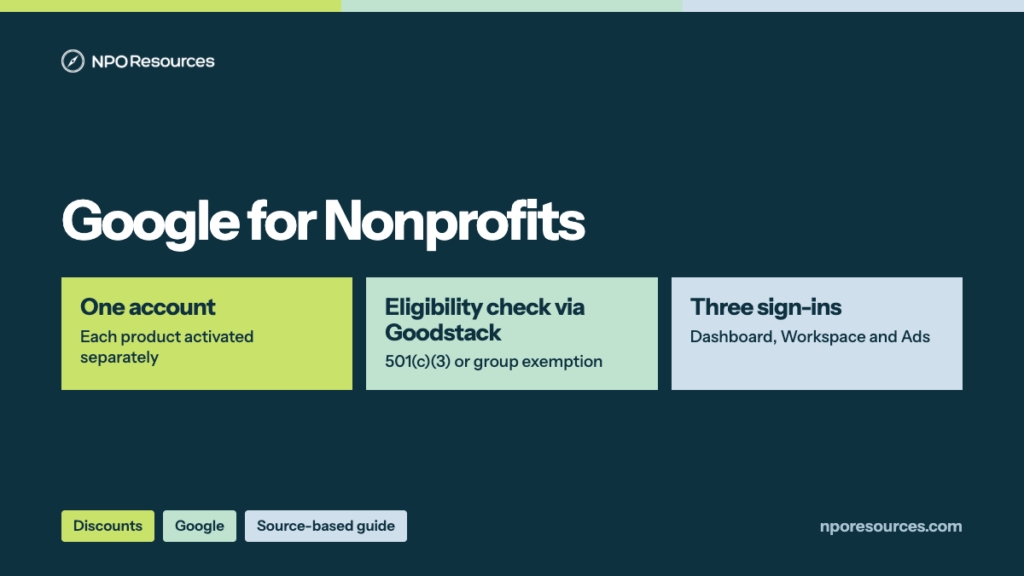
The short answer: Google for Nonprofits gives eligible charities a suite of no-cost and discounted Google products, including free Workspace, up to $10,000 a month in search ads, the YouTube Nonprofit Program and Maps Platform credits. But the account is a key ring, not a product. Approval by itself turns nothing on; each product is activated separately, and the ring belongs to the Google Account that requested it, plus any co-admins it adds. Two common searches, finding the right login and replacing an admin who left, trace back to that. This guide covers what’s included, who qualifies, how to apply through Goodstack, how to log in, and what to do when the person who set it up has gone, all from Google’s own pages (dates in the sources list).
Important note: General educational information, not legal, tax or technology advice. Google sets these rules and changes them; confirm on the Google pages linked below.
Key takeaways
- Google for Nonprofits offers eligible organizations no-cost and discounted tools: Google Workspace for Nonprofits ($0), discounted paid Workspace editions, Google Ad Grants, the YouTube Nonprofit Program and Google Maps Platform credits (Google, 9 November 2026).
- In the U.S. you need IRS-recognized 501(c)(3) status or a qualifying group exemption. Government bodies, hospitals and schools aren’t eligible, and neither are fiscally sponsored projects without their own 501(c)(3).
- Google’s partner Goodstack verifies your organization. Google’s pages give 2–14 business days for most requests, and 3 to 5 for most Goodstack reviews.
- Approval opens a dashboard, not the products. Each one is activated separately, and Workspace and Ad Grants have their own sign-ins and admins.
- We suggest adding a second administrator now. If the only admin leaves, a new request waits 14 days for a reply before Google reviews it.
Watch: the whole process in under two minutes
Who qualifies, the steps to apply, and which account to sign in with. English captions available.
Stuck on a step?
Free help from connectNPO, the team behind NPO Resources (connectNPO also builds nonprofit websites; this help is separate and free). No cost, no sales pitch. Tell us where you’re stuck and we’ll reply by email. Your organization applies itself; we never ask for passwords, bank details or your EIN.
On this page
- What Google for Nonprofits includes and costs
- Google for Nonprofits eligibility
- What to have ready
- How to apply, step by step
- Pending, action required or not eligible
- Google for Nonprofits login
- When the person who set it up leaves
- Activate each product
- Keeping the account in good standing
- Sources reviewed
- Frequently asked questions
- Related NPO Resources guides
What Google for Nonprofits includes and what it costs
Google describes the program as access to “Google products and discounts” for eligible organizations (About Google for Nonprofits). Here is what each product costs and needs, as Google’s pages stated on 9 November 2026:
| Product | Cost to you | What it needs | Google’s review time |
|---|---|---|---|
| Google Workspace for Nonprofits | $0 per user per month; paid editions discounted (Business Standard $3.50 per user per month with a 1-year commitment) | Your own domain; up to 2,000 users | Covered in our Workspace guide |
| Google Ad Grants | $0; “$10,000 USD of in-kind advertising every month for text ads” | A website that meets Ad Grants policies; monthly performance rules | 2–14 business days (Google’s general figure for product activation) |
| YouTube Nonprofit Program | $0 | A YouTube channel that clearly belongs to your organization, and its channel ID | 2–14 business days |
| Google Maps Platform credits | Google lists $250 a month in credit, and you can ask for more with a justification | A Google Cloud billing account | 3 business days |
Two smaller items sit alongside these. Google says nonprofits in sustainability, crisis response and public health “may be eligible for the Google Earth Noncommercial Credits program.” And Google Sites is part of every Workspace plan, so a simple site for staff or volunteers comes with Workspace rather than as a separate offer.
Google Voice isn’t listed among the Google for Nonprofits offerings on the Google pages we checked on 9 November 2026. If your team needs phone numbers, check Google Voice’s own pricing rather than assuming a nonprofit rate.
A key ring, not a product. Google’s getting-started page is plain about it: “Each product needs to be activated separately.” Approval hands you the ring. You still choose which doors to open, one at a time, and each door keeps its own rules.
Google for Nonprofits eligibility: who qualifies
The 30-second check (U.S.)
- Has the IRS recognized your organization as a 501(c)(3), or are you covered by a group exemption under a 501(c)(3) central organization?
- Are you something other than a government body, a hospital or health care organization, or a school, college or university?
- If you have a fiscal sponsor, do you also have your own 501(c)(3) status? If you don’t have a fiscal sponsor, skip this one.
Yes to each: you look eligible, and Goodstack’s verification makes the call. Unsure? Read the details below, or ask us for free help.
Google’s U.S. eligibility guidelines require registration with the IRS as exempt under Section 501(c)(3), or a group exempt organization with proven affiliation to a central 501(c)(3). Every organization must also be verified by Goodstack and agree to the Google for Nonprofits Additional Terms of Service. Google’s eligibility page shows which products are offered in each country.
Eligible
- IRS-recognized 501(c)(3) organizations
- Group exempt organizations with their own EIN and proof of affiliation
- Local chapters officially recognized by a 501(c)(3) parent, using the parent’s documents
- Charitable arms of hospitals and philanthropic arms of schools
Not eligible
- Government entities and organizations
- Hospitals and health care organizations
- Schools, academic institutions and universities (Google for Education is separate)
- Fiscally sponsored projects without their own 501(c)(3) or a group exemption
- Organizations not listed with the IRS
Fiscal sponsorship. Google’s article on group exempt, chapter and fiscally sponsored organizations says: “Fiscally sponsored organizations (FSOs) that do not have their own 501(c)(3) status and are not covered by group exemption are not eligible for Google for Nonprofits.”
Churches and other automatically exempt groups. Some organizations, such as churches, don’t have to apply to the IRS for exemption. For Google, they still do: organizations “must obtain recognition of 501(c)(3) tax-exempt status from the IRS” (Tax exempt organizations). If your exemption lapsed for missing filings, fix that first; our Form 990-N guide explains how it happens.
What to have ready
- The Google Account that will hold the keys. Google asks you to sign in “with the administrative Google Account you want to use for your organization.” Our suggestion: use an account your organization controls, not one person’s private Gmail, so it doesn’t leave with them.
- Your legal name, address and EIN, exactly as registered. Google sends these to Goodstack for validation (Get verified by Goodstack; finding your tax ID).
- Documents, in case Goodstack asks, such as bylaws, registration certificates or your IRS determination letter.
- An organization email address. If you apply from a personal email, Google says Goodstack may ask for a signed letter from a board member, director or executive officer confirming your role.
- For YouTube: your organization’s channel and its channel ID. For Maps: a Google Cloud billing account.
Our Goodstack page explains how its verification works across programs, and our nonprofit tech discount application checklist covers the records most discount programs ask for.
How to apply for Google for Nonprofits, step by step
These steps follow Google’s 5 steps to get started and Goodstack verification articles, read on 9 November 2026. The forms sit behind a Google sign-in, so we describe them in words rather than show them.
1Select Get started
Go to google.com/nonprofits and select Get started. Sign in with the Google Account you chose above. If your organization already has an account, Google walks you through requesting access instead (see when the person who set it up leaves).
2Enter your organization’s details
Enter your nonprofit’s official registered name, address and tax ID. Google routes them to Goodstack, which checks them against official registries.
3Wait for verification
Google’s getting-started page says “Most requests will be reviewed in 2-14 business days.” Its Goodstack article says “Most applications are reviewed within 3 to 5 business days.” Watch for email from [email protected], including in spam.
4Get the approval email
Google emails you once Goodstack finishes. The decision is Goodstack’s: Google says it “does not directly evaluate or determine the charitable eligibility outcome” of a request.
5Activate the products you want
Sign in, select Activate products under your organization’s name, and request each product on its own. See Activate each product.
Pending, action required or not eligible
Your status shows directly below your organization’s name when you sign in (Check your account status; Get verified by Goodstack):
Google for Nonprofits login: which account, which door
The plain answer: to log in to Google for Nonprofits, go to google.com/nonprofits and sign in with the Google Account that requested your organization’s account, or one that was later added as an administrator. There’s no separate Google for Nonprofits password; if you forgot it, you reset that Google Account’s password (Recover your login).
Don’t know which account it was? Search your organization’s inboxes for the confirmation email from [email protected]. Still stuck? Request administrative access (next section).
Part of the confusion is that your products live behind different doors, like an apartment building where the front door and each unit have their own keys. Google says Google for Nonprofits and Google Workspace are “two separate accounts and often have different sets of administrators” (Workspace admin access).
Ad Grants invitation never arrived? After approval, Google sends two emails: one inviting you to the Ad Grants account and one to accept a payments profile (Google notes “you will not be charged”). Allow up to 3 business days and check every folder (Ad Grants account access). If you see a paid Google Ads account instead, use the account switcher at the top right and pick the one with your Ad Grants Customer ID.
When the person who set it up leaves
This is the problem the key ring creates. If the only administrator leaves without adding anyone, the ring leaves with them. You can get it back, but it takes time.
Request access. Signed in with the Google Account you want to use, go to google.com/nonprofits, select Get started and enter your organization’s details. When the system finds the existing account, it asks you to submit an access request (Request administrative access). Your name, email and contact details are shared with the current admins.
The current admins decide. The request goes to their inboxes. If they approve or deny it, you get an email. If they deny it, the fix is inside your organization.
After 14 days with no reply. The request goes to a Google representative, who reviews the account and “may transfer ownership of the account to the requester” (Approve or deny a request). Google is firm on timing: “Support cannot expedite this review” (Request administrative access). Its login recovery article puts it at about 14 business days.
Then check the other doors. Google for Nonprofits admin rights don’t carry over to Workspace. To recover the Workspace admin console, Google points to the Admin console login issues form, and, if access can’t be recovered, the Google Workspace contested domain form.
Prevent it now. Google lets an administrator add co-administrators under the Administrators tab, and co-admins have the same rights, including activating products and removing other admins (Add a new administrator). Our suggestion: add at least one more person you trust, and do the same in the Workspace admin console and Ad Grants. If you submitted an access request with the wrong account, cancel it under the In Progress status and submit again.
Activate each product
Sign in, select Activate products under your organization’s name, then Get started under the product you want.
Google Workspace for Nonprofits
The no-cost edition is $0 per user per month, and paid editions are discounted (Google’s Workspace offer page). The free edition and the Business Standard and Plus discounts have a 2,000-user limit. Activation, domains and moving an existing Workspace account are covered in our Google Workspace for Nonprofits guide.
Gemini and AI training
Google says eligible organizations can receive Workspace for Nonprofits for up to 2,000 users, “with the Gemini app and Gemini Notebook as a core service for $0/month.” Once Workspace is active, its AI & Productivity Program offers up to six 1:1 video sessions with a Google Product Specialist over two weeks, at no cost, in languages including English, Spanish and Korean. You schedule it from the Products tab.
Google Ad Grants
Ad Grants gives eligible nonprofits “$10,000 USD of in-kind advertising every month for text ads” on Google Search. Google’s terms say grantees “must be organized and operated exclusively for charitable purposes” and can’t run election ads where verification is required (Ad Grants terms). Two sets of rules apply:
- Your website. “Your nonprofit must own the domain(s) your ads point to.” Google’s website policy also asks for substantial, original content about your mission, HTTPS across the whole site, working donation links, and no AdSense ads. A domain that just redirects to a donation platform or social page doesn’t qualify.
- The account, every month. Google’s account management policy and compliance guide set ongoing rules for most accounts, among them a 5% click-through rate at the account level (missing it two months in a row means temporary deactivation), conversion tracking, location targeting and keyword limits. Some rules depend on when the account was created and whether it uses Smart campaigns, so read them for your own account.
Running Ad Grants campaigns is its own skill, and these rules are why. If you’re weighing it, read the policies above first.
YouTube Nonprofit Program
You need a YouTube channel for your organization and its channel ID; the channel should be “easily verified as belonging to your organization.” Google reviews requests in 2–14 business days (Activate the YouTube Nonprofit Program). Program features include Link Anywhere cards, which link to any external URL, such as a donation page, plus dedicated technical support and YouTube Giving fundraisers. Pick the channel carefully, the way you would wording for an engraved plaque: “Changing your nonprofit’s channel ID is permanent,” and the nonprofit features move to the new channel. If activation fails because the channel doesn’t look like yours, Google suggests adding your branding or linking the channel from your website, then resubmitting (Fix a YouTube activation problem).
Google Maps Platform credits
You need a Google Cloud billing account, your address, phone number and domain, and to know whether the maps go on a public site, a restricted one, or both. The form asks for a justification for “additional credit beyond the $250/month that’s included when you register your Maps project” (Activate Google Maps Platform credits). Google reviews requests in 3 business days.
Keeping the account in good standing
Google can suspend a Google for Nonprofits account, and its products, for violating its terms or a product’s policies, for losing nonprofit status, or for not meeting eligibility. A suspended account can’t activate new products or reactivate old ones (About suspended accounts). Older accounts may also hear from Google: “If your organization was registered with Google for Nonprofits before 2016, we may ask for you to reverify your organization” by requesting a new account. Keep the contact details current so those emails reach someone who still works with you.
We recheck this page against the official sources. Last checked: 9 November 2026.
NPO Resources is run by connectNPO, which also builds websites for nonprofits. This guide and the help offered here are free and separate from those services. We are not affiliated with Google or Goodstack, and we receive nothing when your organization joins Google for Nonprofits.
Sources reviewed
We read the sources below on 9 November 2026 unless another date is shown. Prices and rules change; check the source before relying on any figure here.
- Google for Nonprofits: home and FAQ, eligibility, offering pages for Workspace (prices and user limits), Ad Grants and YouTube.
- Google for Nonprofits Help, getting started: About Google for Nonprofits, 5 steps to get started, Eligibility guidelines (United States), Group exempt, local chapter, & fiscally sponsored organizations, Tax exempt organizations, Finding your tax ID, Get verified by Goodstack, Check your account status, Submit a new request.
- Google for Nonprofits Help, account access: Recover your login, Request administrative access, Add a new administrator, Approve or deny an access request, Workspace admin access, Ad Grants account access, About suspended accounts.
- Google for Nonprofits Help, products: Workspace for Nonprofits AI & Productivity Program, Activate the YouTube Nonprofit Program, Fix a YouTube activation problem, YouTube Nonprofit Program overview, Activate Google Maps Platform credits.
- Google Ad Grants Help: Terms and Conditions, Website policy, Account management policy, Policy Compliance Guide.
Frequently asked questions
For eligible organizations, largely yes. Google describes it as a suite of no-cost and discounted tools: Workspace for Nonprofits, Ad Grants and the YouTube Nonprofit Program cost nothing, Google lists $250 a month in Maps Platform credit, and paid Workspace editions are discounted rather than free.
Go to google.com/nonprofits and sign in with the Google Account that requested your organization’s account, or one added as an administrator. If you don’t know which account that was, search your inbox for email from [email protected], or request administrative access.
You request an account, Google’s partner Goodstack verifies your organization, and Google emails you when it’s approved. Approval opens a dashboard, and from there you activate each product, such as Workspace, Ad Grants, YouTube or Maps credits, separately.
The nonprofit edition is $0 per user per month for up to 2,000 users. On 9 November 2026 Google listed Business Standard at $3.50 per user per month with a 1-year commitment, or $4.20 billed monthly, and Business Plus at $6.16 with a 1-year commitment, or $7.40 billed monthly.
Only with its own 501(c)(3) status or a qualifying group exemption. Google says fiscally sponsored organizations that do not have their own 501(c)(3) status and are not covered by group exemption are not eligible.
Request administrative access at google.com/nonprofits by selecting Get started and entering your organization’s details. The request goes to the current admins; if nobody responds in 14 days, a Google representative reviews it and may transfer ownership. Google says support can’t speed this up.
Yes, through Workspace. Google says Workspace for Nonprofits includes the Gemini app and Gemini Notebook as a core service for $0 a month, and its AI & Productivity Program offers up to six free 1:1 sessions with a Google Product Specialist.
Related NPO Resources guides
- Google Workspace for Nonprofits — editions, activation and existing Workspace accounts.
- Google for Nonprofits program fact sheet — the program at a glance.
- Goodstack — how the verification partner works.
- Nonprofit discounts and tech access — compare discount programs side by side.
- Microsoft 365 for Nonprofits and Zoom for Nonprofits — email, office tools and meetings.
- Slack for Nonprofits, Adobe for Nonprofits and Canva for Nonprofits — chat and design tools.
- QuickBooks for Nonprofits — donated accounting software through TechSoup.
- Claude AI for Nonprofits and ChatGPT for Nonprofits — two AI discounts.
- Docusign for Nonprofits — 30% off annual eSignature plans, and how to apply.
- Nonprofit tech discounts — how to check other software programs at the source.