
Important note: This article is general educational information, not legal, tax, or purchasing advice. Prices and eligibility rules are set by Google and its verification partner, Goodstack, and they change. Confirm them on the official pages linked below before you rely on them.
You read that Google Workspace for nonprofits is free. You clicked through Google’s nonprofit pages, set up an account, and somewhere along the way a checkout screen asked for a credit card. Maybe you closed the tab. Maybe you paid, just to get email working for the volunteers. You are not the first person to end up there, and it doesn’t mean your organization doesn’t qualify.
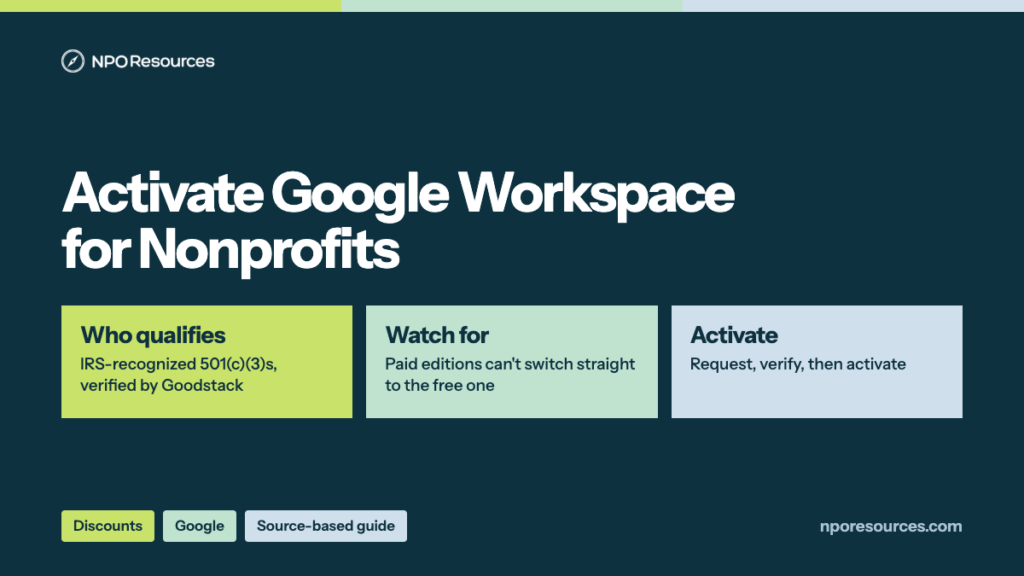
The short answer: Google Workspace for Nonprofits is Google’s no-cost edition of Gmail, Drive, Meet, Docs and the rest for verified nonprofits, listed at $0 per user per month on Google’s nonprofit offers page when we checked on 7 November 2026. You get it in three moves: request a Google for Nonprofits account, pass Goodstack’s verification, then activate Workspace from inside that account. Google’s help pages describe a few situations that lead to a billing step, and several of them come down to which Workspace edition your domain is already on. This guide shows the path, those situations, and what to do if you already paid.
Key takeaways
- Google Workspace for Nonprofits is listed at $0 per user per month, with 100 TB of storage shared across the whole organization (Google, 7 November 2026).
- In the U.S. you need IRS recognition under section 501(c)(3), and Goodstack checks it. Government bodies, hospitals and schools aren’t eligible; fiscally sponsored projects without their own 501(c)(3) aren’t either.
- Approval switches nothing on. You activate Workspace separately, from inside your Google for Nonprofits account, and Google reviews your domain and website.
- If your organization already pays for Business Standard, Business Plus or Enterprise, it can’t move straight to the no-cost edition; Google’s route runs through Business Starter, a paid edition.
- Your Google for Nonprofits login and your Workspace admin login are two separate accounts, the first thing Google’s sign-in troubleshooting asks you to check.
Watch: the whole process in under three minutes
What you get, who qualifies, what to have ready, the 6 steps to request and activate, and what to do if you already pay for Workspace. English captions available.
Stuck on a step?
Free help from connectNPO, the team behind NPO Resources. No cost, no sales pitch. Tell us where you’re stuck and we’ll reply by email. Your organization applies itself; we never ask for passwords, bank details or your EIN.
On this page
- Who is eligible
- Google Workspace for nonprofits: what’s free and what’s discounted
- What to have ready
- How to get it, step by step
- Why it asks you to pay, and how to fix it
- Other errors and how to fix them
- After you’re approved
- Sources reviewed
- Frequently asked questions
- Related NPO Resources guides
Who is eligible
The 30-second check
- Is your organization recognized by the IRS under section 501(c)(3)? Look it up in the IRS Tax Exempt Organization Search.
- Is it something other than a government body, a hospital or health care organization, or a school, college or university?
- Do you have your own domain with a working website that matches your organization’s name and shows its charity ID, street address and/or mission?
Three yeses: you can most likely apply today. The first two decide eligibility; the website matters later, when Google reviews your Workspace activation. A no, or a “not sure”: read the details below, or ask us.
Google’s eligibility guidelines set the U.S. rule: organizations “must be registered with the IRS as exempt from federal income tax under Section 501(c)(3) of the US Internal Revenue Code or a group exempt organization with proven affiliation to a central nonprofit that has 501c3 status.” Google’s verification partner, Goodstack, checks that against official records and checks that you belong to the organization.
Eligible
- 501(c)(3) organizations recognized by the IRS
- Group-exempt chapters with proven affiliation to a 501(c)(3) central organization
- Charitable arms or foundations of health care organizations, and philanthropic arms of schools and universities
Not eligible
- Government entities or organizations
- Hospitals and health care organizations
- Schools, academic institutions and universities
- Fiscally sponsored projects without their own 501(c)(3) status
Outside the U.S., requirements and product availability vary by country; Google lists them on its country eligibility pages. Schools and universities have a separate Google program, Google for Education, which Google’s eligibility page points to. If your exemption was automatically revoked for missing filings, fix that first; our Form 990-N guide explains how it happens. Still waiting on a determination letter? The Form 1023 and 1023-EZ guide covers the application.
Google Workspace for nonprofits: what’s free and what’s discounted
Every Workspace plan includes Gmail, Drive, Meet, Calendar, Chat, Docs, Sheets, Slides, Keep, Sites and Forms. The nonprofit offers differ in storage, meeting size and admin controls. Here is what Google’s offers page showed on 7 November 2026:
| Edition | Nonprofit price, per user per month | Storage | Video meetings |
|---|---|---|---|
| Google Workspace for Nonprofits | $0 | 100 TB shared across all users | 150 participants |
| Business Standard | $3.50 with a 1-year commitment, or $4.20 billed monthly (75%+ off) | 2 TB per user, pooled | 150 participants, with recording |
| Business Plus | $6.16 with a 1-year commitment, or $7.40 billed monthly (72%+ off) | 5 TB per user, pooled | 500 participants |
| Enterprise Standard and Plus | 70%+ off standard pricing | “As much storage as you need” | 500 (Standard) or 1,000 (Plus)* |
* Enterprise meeting sizes are from Google’s feature comparison, which notes that after 500, the next 500 join as view only; the offers page lists 1,000 for Enterprise. The Business storage wording follows the same comparison page, which lists Enterprise as “5 TB per user with the ability to request more.”
Three limits are worth reading twice:
- Storage is a pool. The no-cost edition gives “100 TB shared across all users.” The Business editions pool too, but the pool grows with each user (2 TB or 5 TB per user).
- Users. The no-cost edition and the Business discounts have “a maximum limit of 2,000 users,” and “There is no minimum or maximum user limit for discounted Enterprise plans.” Google’s edition page adds that “New accounts can add up to 300 users,” with more on request through Workspace support.
- Discount conditions. Paid discounts apply to nonprofits “no longer in their free trial,” and “Discounts are only available through Google, not through a Google partner (reseller),” according to Google’s upgrade article.
The no-cost edition also includes the Gemini app, shared drives and AppSheet Core, per the same edition page. One older Google help page still lists smaller meeting and storage figures; we use the offers page, which Google links from its nonprofit program.
What to have ready
1. Legal name, address and EIN
Exactly as the IRS lists them. Google says the EIN is on your IRS determination letter, your Form 990 filings or official registration documents (where to find it).
2. A Google Account to apply with
Google asks you to sign in “with the administrative Google Account you want to use for your organization.” Pick one that won’t leave with a volunteer, and write down who owns it.
3. Your domain and who controls it
Workspace runs on your domain, such as yournonprofit.org. You’ll need to verify it at your registrar, so know who has that login.
4. A website that passes review
Not a “Coming Soon” page. It should match your organization’s name and display “your Charity ID, a physical street address, and/or a clear mission statement.”
5. Documents, only if asked
If Goodstack can’t match you to public records it emails you. Its document rules list what it accepts. Those go to Goodstack, never to us.
Think of your website as the sign over a shop door. Google’s reviewers want to see that the domain you’re asking for really belongs to the nonprofit you registered. Our nonprofit tech discount application checklist covers the same records for other programs, so you only gather them once.
How to get it, step by step
These steps come from Google’s five-step guide and its Workspace activation article, read on 7 November 2026. Steps 1–3 get your organization verified; steps 4–7 activate Workspace. The account screens need a nonprofit’s own sign-in, so we describe them in words rather than show them.
1Request a Google for Nonprofits account
Go to google.com/nonprofits and click Get started. Sign in with the Google Account you chose, then enter your organization’s registered name, address and EIN. If your organization already has an account, Google walks you through requesting access instead.
2Wait for Goodstack, and watch your inbox
Google’s steps say “Most requests will be reviewed in 2-14 business days.” Google’s help article on Goodstack gives a shorter typical time: “Most applications are reviewed within 3 to 5 business days.” Requests come from [email protected], so check spam.
No update after 5 business days? The same article says one or more of these is still pending: verifying your email, confirming you’re associated with the organization, or uploading documentation.
3Check your status
Sign in and look under your organization’s name: In progress, Action required, Verified or Not eligible (status guide). Not eligible? You can fix the issue and submit a new request.
4Start Workspace from inside your account
Once verified, sign in to Google for Nonprofits. Under Google Workspace for Nonprofits, click Get started. Google asks whether your nonprofit already uses Google Workspace. Not sure? Google says to answer “Yes, we currently use Google Workspace” and enter your domain; it checks for you.
5If you don’t use Workspace yet: start the no-cost trial from that screen
Google’s instruction is direct: “Use the link to sign up for a 14-day trial of Google Workspace for Nonprofits at no charge.” Then verify your domain at your registrar (Google mentions WordPress and Squarespace as examples) and submit the domain for review.
6If you already use Workspace: share your domain
Google checks which edition you’re on and shows the offers your domain is eligible for. If your edition can’t move straight to the no-cost one, the next section explains what to do.
7Click Activate and wait for the email
Google reviews the request, including your website, and emails you either that your domain was upgraded or what else it needs. Google’s activation article says the review “can take several days”; its status page says “Most requests are reviewed in 2-14 business days.” In your account, the product status reads Activation request received, Your activation request needs work, Approved or Not eligible.
Why it asks you to pay, and how to fix it
A payment screen doesn’t by itself mean the no-cost edition is closed to you. Google’s rules work like an exchange voucher that only covers the starter size: some editions can be swapped for the no-cost one directly, and others have to step down first. Five situations on Google’s pages can lead to a billing step.
1. You’re already on a paid edition
Google: “Only Google Workspace for Nonprofits trial accounts, Google Workspace Business Starter accounts, or legacy G Suite Basic accounts can be upgraded to the no-cost Google Workspace for Nonprofits edition.” On Business Standard, Business Plus or Enterprise, Google gives two options: complete the activation steps and follow the emailed instructions for the nonprofit discount on your current edition, or downgrade to Business Starter (Google calls it a “paid Business Starter subscription” elsewhere) and then activate from your Google for Nonprofits account (Google’s fix).
2. You upgraded once and want to come back
If you moved from the nonprofit edition to a paid one, the way back is Business Starter, then a request to Workspace support. Google says it “can take approximately 5 days,” and “When you’re on Business Starter, you’ll pay the standard list price for each user every month, prorated for the number of days you’re on this subscription” (downgrade guide).
3. You’re on the old free G Suite
Google says the G Suite legacy free edition and the free edition of Workspace are “only available for personal non-commercial use,” and accounts using a free edition for commercial purposes must move to a paid subscription; its steps include a “Setup Billing” button (Google’s transition page). Google doesn’t say whether this edition can switch straight to the nonprofit edition; if you’re on it, ask Workspace support before paying.
4. You picked a discounted paid plan
Business and Enterprise upgrades end in a checkout with billing details by design. The discount applies only after the free trial, and only when you buy from Google, not a reseller (upgrade article).
5. You started a Business Starter trial, or already pay for Business Starter
Google lists Business Starter accounts among those that can be upgraded to the no-cost edition. Check your edition under Billing > Subscriptions, then activate from your Google for Nonprofits account, answering “Yes, we currently use Google Workspace.”
How to see which edition you’re on: sign in to the Google Admin console with your Workspace admin email, then go to Menu > Billing > Subscriptions, as Google’s wrong-edition article describes.
What Google doesn’t say: its pages don’t say whether the 14-day nonprofit trial asks for a card, and they don’t describe what a sign-up started anywhere else will show. Our advice: start the trial from the link inside your verified Google for Nonprofits account, as Google’s activation steps do, and read the price on the screen before you confirm anything.
Other errors and how to fix them
Your organization holds two different keys, like the key to a building and the key to one office inside it. Google puts it plainly: “Google for Nonprofits and Google Workspace are two separate accounts, and they often have different sets of administrators.” Being an admin on one doesn’t open the other; Google says Google for Nonprofits admin roles “do not automatically grant Google Workspace administrative privileges.” If you can’t tell which account opens which, see which Google for Nonprofits login to use.
After you’re approved
Each Google for Nonprofits product is switched on separately: “Each product needs to be activated separately.” Once Workspace is approved, Google offers free one-on-one sessions with its product specialists through the Workspace for Nonprofits AI & Productivity Program: in your account, open the Products tab, find your approved Workspace activation and select Schedule 1:1 support with a product expert.
Three things to do in the first week:
- Write down both admin accounts. Record who administers Google for Nonprofits and who administers Workspace, and add recovery options to the Workspace admin, as Google recommends after any lockout.
- Plan for the shared storage pool. 100 TB is shared by everyone, so agree where large video and archive files live before the drive fills.
- Upgrade only if you need it. Paid editions add storage per user and meeting recording, and Business Plus and Enterprise allow larger meetings. Google’s pages name the route as Billing > Buy or upgrade, or Billing > Get more services, in the Admin console; when you upgrade, “everyone in your Google Workspace account gets the same subscription.”
Google’s pages don’t say how often it rechecks eligibility, so keep your 501(c)(3) status current and the approval emails on file. We recheck this page against the official sources. Last checked: 7 November 2026.
NPO Resources is run by connectNPO, a company that provides website and accounting services to nonprofits. This guide and the help offered here are free and separate from those services. We are not affiliated with Google or Goodstack, and we receive nothing when your organization signs up.
Sources reviewed
We read every source below on 7 November 2026. Prices and rules change; check the source before relying on any figure here.
- Google for Nonprofits: Google Workspace for Nonprofits offers (prices, storage, meetings, 2,000-user limit), Eligibility.
- Google for Nonprofits Help: 5 steps to get started, Eligibility guidelines (U.S. rules, fiscal sponsorship), Get verified by Goodstack, Registration number or tax ID, Check your account status, Submit a new request, Activate Google Workspace for Nonprofits (domain policy, trial, review), Workspace for Nonprofits edition, Compare features for nonprofits, Account on the wrong edition, Downgrade to Workspace for Nonprofits, admin.google.com error, Domain already exists, Gain admin access, AI & Productivity Program, Eligibility and offerings by country.
- Google Workspace Admin Help: Google Workspace for Nonprofits edition (300 users to start, updated October 26, 2026), Compare Google Workspace features for nonprofits, Upgrade from Google Workspace for Nonprofits (discounts, reseller rule), Transition from a free edition, Verify your domain.
- Goodstack: required documents, requesting a review. IRS: Tax Exempt Organization Search.
Frequently asked questions
Yes, for eligible organizations. Google lists Google Workspace for Nonprofits at $0 per user per month, with 100 TB of storage shared across all users and video meetings of up to 150 participants, checked on 7 November 2026. Paid editions are discounted rather than free.
In the U.S., organizations recognized by the IRS under section 501(c)(3), or group-exempt organizations with proven affiliation to a 501(c)(3) central organization, verified by Goodstack. Government entities, hospitals and health care organizations, and schools and universities are not eligible, and neither are fiscally sponsored projects without their own 501(c)(3) status.
Google’s pages describe situations that lead to a billing step: your domain is on Business Standard, Business Plus or Enterprise, which can’t move straight to the no-cost edition; you’re returning from a paid edition through Business Starter, billed at list price while you’re on it; you’re on the old free G Suite, which is for personal non-commercial use only; or you chose a discounted paid plan. If you already started a Business Starter trial, you can still activate the no-cost edition from your Google for Nonprofits account.
Google says most requests are reviewed in 2–14 business days, and its help article on Goodstack says most applications are reviewed within 3 to 5 business days. Activating Workspace is a separate review; Google’s pages say it can take several days, and that most product activation requests are reviewed in 2–14 business days.
The no-cost edition has a maximum of 2,000 users. Google says new accounts can add up to 300 users and can ask Workspace support for more. Discounted Enterprise plans have no minimum or maximum user limit.
Not in one step. Google says only Business Starter, legacy G Suite Basic or nonprofit trial accounts can be upgraded to the no-cost edition. From Business Standard, Business Plus or Enterprise, Google’s options are to get the nonprofit discount on your current edition, or to downgrade to Business Starter, a paid edition, and then activate from your Google for Nonprofits account.
They are separate accounts. Google for Nonprofits may use a personal Google Account, while the Workspace Admin console needs an admin email on your own domain, such as [email protected]. Being an admin in Google for Nonprofits does not make you a Workspace admin.
Related NPO Resources guides
- Google for Nonprofits — the program at a glance: Workspace, Ad Grants, YouTube and Maps.
- Nonprofit discounts and tech access — compare discount programs side by side.
- Docusign for Nonprofits — 30% off annual eSignature plans, and how to apply.
- Nonprofit tech discounts — how to check other software programs at the source.
- Goodstack — the verification service Google uses.
- Claude AI for Nonprofits and ChatGPT for Nonprofits — two AI discounts verified the same way.
- Microsoft 365 for Nonprofits — free Business Basic for up to 300 users, and how to register.
- Canva for Nonprofits — free Canva Pro for one team of up to 50, and how to apply.
- Zoom for Nonprofits — 50% off annual Pro and Business plans, and how to apply.
- Adobe for Nonprofits — free Express Premium, discounted Acrobat Pro and Creative Cloud, and where to apply.
- Slack for Nonprofits — free Pro for workspaces of up to 250 members, and how to apply.
- QuickBooks for Nonprofits — QuickBooks Online through TechSoup for a yearly admin fee, and how to set it up.
- Google for Nonprofits — one account for Workspace, Ad Grants and YouTube, and which login to use.
- Nonprofit tech discount application checklist — the records these programs ask for.