
Important note: This article is general educational information, not legal, tax, or purchasing advice. The rules for Zoom for Nonprofits are set by Zoom and its verification partner, Goodstack, and they change. Confirm them on the official pages linked below before you rely on them.
Your board meeting got cut off at 40 minutes again, or the renewal notice for your Zoom plan just landed and someone remembers that nonprofits used to get Zoom through TechSoup. You search, and the answers disagree: free, half price, no longer available.
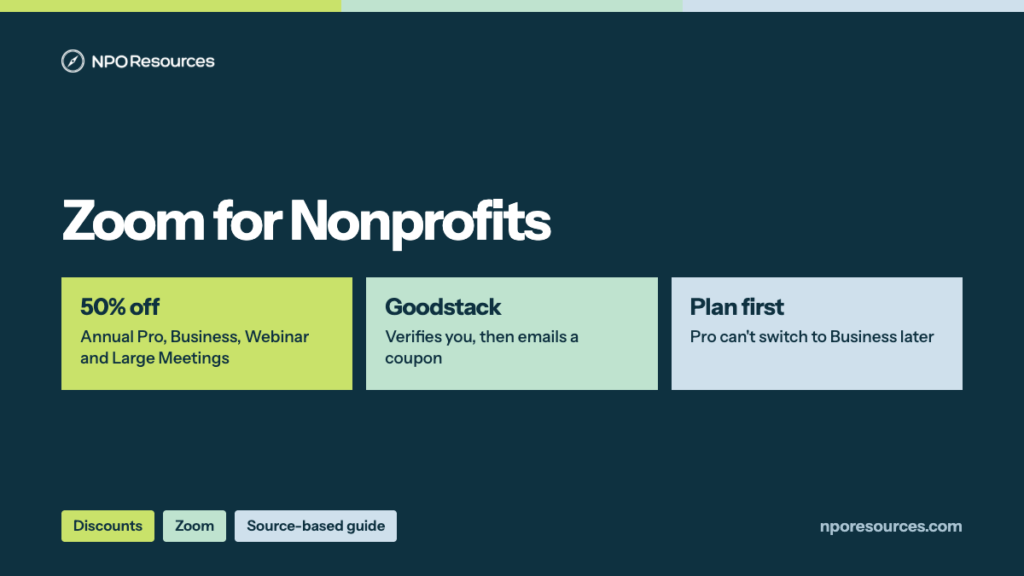
The short answer: Zoom for Nonprofits isn’t free, but eligible organizations get 50% off select paid plans, billed annually. TechSoup no longer offers it; Zoom now verifies nonprofits through Goodstack. The discount itself is simple. The timing is the hard part: what you pay today, and which plan you pick at sign-up, decide whether the coupon works and what you can change later. This guide covers the price, who qualifies, the steps, and what to do if you already pay for Zoom, all from Zoom’s and Goodstack’s official pages (dates in the sources list).
Key takeaways
- Zoom for Nonprofits isn’t free: eligible organizations get 50% off Zoom Workplace Pro ($7.08 per user a month), Workplace Business ($9.16), the Large Meeting add-on and Zoom Webinar, on annual plans only (Zoom Cares, 8 November 2026).
- You qualify with 501(c)(3) status (public libraries included) and an operating budget of $10 million or less. Schools, healthcare organizations, government agencies and 501(c)(4)s and (6)s are excluded.
- The old TechSoup route is gone. You apply from Zoom’s Zoom Cares page; Goodstack verifies you, emails next steps within 2–3 business days, and sends approved organizations a coupon.
- Pick Pro (shown for 1–9 users) or Business (10–250) carefully: Zoom says you can’t move from Pro to Business with the discount later.
- Already paying? An annual plan bought online switches right away, and Zoom credits the amount remaining to the new term; a monthly plan must move to annual first, and that change waits for the end of your current term.
Watch: the whole process in under three minutes
What the discount covers, who qualifies, the steps through Zoom Cares and Goodstack, and what to do if you already pay for Zoom. English captions available.
Stuck on a step?
Free help from connectNPO, the team behind NPO Resources. No cost, no sales pitch. Tell us where you’re stuck and we’ll reply by email. Your organization applies itself; we never ask for passwords, bank details or your EIN.
On this page
- Zoom nonprofit pricing: what the 50% discount costs
- Who qualifies, and the edge cases
- What to have ready
- How to apply for Zoom for Nonprofits, step by step
- Already paying for Zoom?
- After the discount: seats, taxes and coupon errors
- Sources reviewed
- Frequently asked questions
- Related NPO Resources guides
Zoom nonprofit pricing: what the 50% discount costs
Zoom calls the program “Zoom’s global 50% nonprofit discount program on select products for eligible organizations.” The discount covers four products, “annual plans only.” Other products on Zoom’s pricing page you can still buy at full price. Here are the nonprofit prices from the Zoom Cares page on 8 November 2026:
| Product | Shown for | Nonprofit price | Regular price | What you get |
|---|---|---|---|---|
| Workplace Pro | 1–9 users | $7.08 per user a month, billed annually | $14.16 | Meetings up to 100 participants and 30 hours |
| Workplace Business | 10–250 users | $9.16 per user a month, billed annually | $18.33 | Up to 300 participants, plus scheduler, SSO and custom branding |
| Large Meeting add-on | Up to 1,000 participants | Starting at $25 per user a month, billed annually | $50 | Bigger meetings on top of Pro or Business |
| Zoom Webinar | Up to 5,000 attendees | Starting at $64.50 per license a month | $129 | Webinars and public events |
| Workplace Basic | Anyone | Free, not part of the program | Free | Up to 100 participants, 40 minutes per meeting |
By our arithmetic, a team of 5 on Pro pays $424.80 a year ($7.08 × 5 × 12), and a team of 10 on Business pays $1,099.20 a year ($9.16 × 10 × 12), against $2,199.60 at the regular price. Those totals are before tax; confirm the amount at checkout.
Choose your plan carefully the first time. It’s like picking the size of the moving truck: you can’t swap it halfway through the load. Zoom’s nonprofit help article says you can add licenses to the plan you bought, but “You will not be able to upgrade from Workplace Pro to Workplace Business.” Zoom Cares shows the Pro price for 1–9 users and the Business price for 10–250. Zoom’s regular pricing page sells Pro for 1–99 licenses, but its nonprofit pages don’t say whether the discounted Pro price applies past 9 users; if you’re near 10 people, ask Zoom Support before you buy. Need more than 100 people in a meeting? Pro can add the discounted Large Meeting add-on, and Business includes up to 300 participants.
Who qualifies, and the edge cases
The 30-second check
- Is your organization recognized under section 501(c)(3)? Look it up in the IRS Tax Exempt Organization Search. Public libraries need 501(c)(3) designation too.
- Is your operating budget $10 million or less?
- Are you outside the excluded groups: education, healthcare, government, and other 501(c) types?
- Did you buy Zoom online, or are you new to Zoom, rather than through a Zoom sales representative?
Four yeses: you look eligible, and Goodstack makes the final call. A no, or you’re unsure: read the details below, or ask us.
Zoom’s eligibility FAQ limits the discount to “qualifying organizations with 501(c)(3) designation and to public libraries with a 501(c)(3) designation, or an international equivalent officially recognized by the applicable regulator, as verified by Goodstack,” with an operating budget of $10 million or less. Zoom’s help article words the budget rule once as “under $10 million USD” and elsewhere as “$10 million USD or less”; if your budget sits right at $10 million, ask Goodstack before you apply.
Eligible
- 501(c)(3) nonprofits
- Public libraries with 501(c)(3) designation
- International equivalents recognized by their regulator
- Operating budget of $10 million or less
Not eligible
- K–12 schools, colleges and universities, boards of education and teaching hospitals
- Hospitals, health centers, clinics, hospice, nursing care, rehabilitation centers and health insurance
- Government agencies
- Other designations, such as 501(c)(4) and 501(c)(6)
- Operating budgets over $10 million
- Customers who bought Zoom through a direct sales quote
Zoom says it serves schools and colleges through Zoom for Education instead.
Edge cases. Goodstack checks that you’re recognized by your regulator, run on a not-for-profit basis and for public benefit, and are in good standing (Goodstack’s verification process). For groups under a group exemption, Goodstack’s U.S. definition says they “must supply their own EIN, and documentation showing their group exemption number to be eligible.” Neither Zoom’s nor Goodstack’s pages address fiscally sponsored projects without their own 501(c)(3); ask Goodstack before you apply rather than guessing. If your exemption lapsed for missing filings, fix that first; our Form 990-N guide explains how it happens.
What to have ready
1. The right email
An official email address for your organization. Zoom says it “should be the email address used for your Zoom account.”
2. Your legal name
You look up your organization by its full legal name. Have it exactly as the IRS lists it.
3. A representative
The person applying confirms they represent the organization. Goodstack checks that the applicant is actually associated with it.
4. Billing access
To change your billing cycle, Zoom requires an account owner, admin or a role with billing privileges.
Our nonprofit tech discount application checklist covers the same records for other programs, and our Goodstack page explains the verifier Zoom uses.
How to apply for Zoom for Nonprofits, step by step
These steps follow Zoom’s nonprofit help article, read on 8 November 2026. We describe the screens in words rather than show them, because the form asks for your organization’s details.
1Open the Zoom Cares page
Go to Zoom Cares and find the section “Get 50% off select Zoom products.”
2Choose your operating budget
Pick “$10 million or less.” That sends you to Goodstack’s verification page.
3Select your country, then find your organization
Choose where your organization is registered, then look it up by its full legal name, or add it if it isn’t listed.
4Enter your name and your organization email
Enter your name as the representative, then the official email address that you use, or will use, for your Zoom account.
5Confirm and agree
Confirm you represent the organization, review Goodstack’s terms and privacy policy, tick the box and submit.
6Watch for Goodstack’s email
Zoom says: “You will receive an email from Goodstack within 2-3 business days with next steps.” Approved organizations get a coupon code. If nothing arrives, it’s worth checking spam and junk folders.
7Apply the coupon in Zoom
Sign in to Zoom and enter the coupon when you purchase or renew an annual plan: Pro, Business, Large Meeting or Webinar. Goodstack’s Zoom page says to enter it in the billing section. Pick the plan carefully; see the note under the price table.
Already paying for Zoom?
This is where the rules get confusing. The coupon works like one at a store register: it applies to what you buy now, not to last month’s receipt. Zoom says it “does not refund any costs incurred due to a previously paid subscription.” What happens next depends on how you pay today:
| You pay today | What happens with the coupon |
|---|---|
| Annual plan, bought online, no discount | “The coupon will apply immediately.” Zoom cancels the original subscription, and any amount remaining is credited to the new, discounted term. |
| Monthly plan, bought online | “You must change from a monthly to an annual billing cycle first.” Zoom’s billing-cycle article says that change “takes effect at the end of the current term.” |
| A Zoom marketing coupon | You can’t switch right away: “You must cancel your subscription and resubscribe.” |
| An older TechSoup discount | It stays valid for the rest of your current term. Before renewal, Zoom emails a reminder to apply through Zoom Cares. |
| A direct quote from Zoom sales | Not eligible for the nonprofit discount. Talk to your Zoom account executive. |
The monthly case needs planning. Switching from monthly to annual is like ending a month-to-month rental to sign a yearly lease: it starts when the current month ends, not the day you ask. Zoom also says you need billing privileges and “no outstanding charges or pending plan changes” to make the switch. So apply to Goodstack early, and change the billing cycle so the annual term starts when your coupon is ready.
After the discount: seats, taxes and coupon errors
We recheck this page against the official sources. Last checked: 8 November 2026.
NPO Resources is run by connectNPO, a company that provides website and accounting services to nonprofits. This guide and the help offered here are free and separate from those services. We are not affiliated with Zoom, Goodstack or TechSoup, and we receive nothing when your organization signs up.
Sources reviewed
We read the sources below on 8 November 2026 unless another date is shown. Prices and rules change; check the source before relying on any figure here.
- Zoom: Zoom Cares, Zoom for Nonprofits (products, nonprofit prices, budget, eligibility FAQ), Zoom Workplace pricing (regular prices, meeting limits, features).
- Zoom Support: Subscribing to Zoom as a nonprofit organization (updated October 16, 2026: requirements, steps, existing customers, FAQ), Changing your Zoom billing cycle (updated September 10, 2026).
- Zoom Support also links its tax exemption article for sales tax; we did not review its details.
- Goodstack: Zoom for Nonprofits, verification process, nonprofit definitions by country; requesting a review (read November 5, 2026). IRS: Tax Exempt Organization Search.
- TechSoup: the old Zoom offer link now leads to a general page that says “The donor you are searching for is no longer available.”
Frequently asked questions
No. Zoom gives eligible nonprofits 50% off Zoom Workplace Pro, Zoom Workplace Business, the Large Meeting add-on and Zoom Webinar, on annual plans only. The free Basic plan is open to anyone, with meetings up to 40 minutes.
Half the regular price, on annual billing. On 8 November 2026 the Zoom Cares page listed Pro at $7.08 per user a month for 1 to 9 users and Business at $9.16 for 10 to 250 users, both billed annually. A team of 10 on Business would pay $1,099.20 a year before tax, by our arithmetic.
Yes, but you get it only after verification. You apply from Zoom’s Zoom Cares page, Goodstack checks your organization, and approved nonprofits receive a coupon code, which you enter when you buy or renew an annual plan.
No. Zoom says it previously partnered with TechSoup and now verifies nonprofits through Goodstack, and TechSoup’s old Zoom link leads to a page saying the donor is no longer available. An existing TechSoup discount stays valid until the end of your current term; before renewal, apply through Zoom Cares.
501(c)(3) organizations and public libraries with 501(c)(3) designation, or an international equivalent, with an operating budget of $10 million or less. Schools and colleges, healthcare organizations, government agencies, other 501(c) types and customers with a direct sales quote are not eligible.
No. The discount is for annual plans only. If you pay monthly, change to annual billing first; Zoom says the change takes effect at the end of your current term.
Yes. On 8 November 2026 Zoom’s pricing page listed meetings up to 40 minutes and 100 participants on the free Basic plan. Paid Pro and Business plans allow meetings up to 30 hours.
Related NPO Resources guides
- Zoom program fact sheet — the offer at a glance.
- Nonprofit discounts and tech access — compare discount programs side by side.
- Google Workspace for Nonprofits and Microsoft 365 for Nonprofits — free email and office tools.
- Canva for Nonprofits — free design tools, also verified through Goodstack.
- Adobe for Nonprofits — free Express Premium, discounted Acrobat Pro and Creative Cloud, and where to apply.
- Slack for Nonprofits — free Pro for workspaces of up to 250 members, and how to apply.
- QuickBooks for Nonprofits — QuickBooks Online through TechSoup for a yearly admin fee, and how to set it up.
- Google for Nonprofits — one account for Workspace, Ad Grants and YouTube, and which login to use.
- Claude AI for Nonprofits and ChatGPT for Nonprofits — two AI discounts explained the same way.
- Docusign for Nonprofits — 30% off annual eSignature plans, and how to apply.
- Nonprofit tech discounts — how to check other software programs at the source.