
Important note: This article is general educational information, not legal, tax, or purchasing advice. The rules for Slack for Nonprofits are set by Slack, which works with TechSoup to validate organizations, and they change. Confirm them on the official pages linked below before you rely on them.
Your volunteers already live in Slack, but the free plan only keeps 90 days of messages searchable, and last spring’s event planning is out of reach. Or you’re about to pay for Pro and someone asks whether nonprofits get it free.
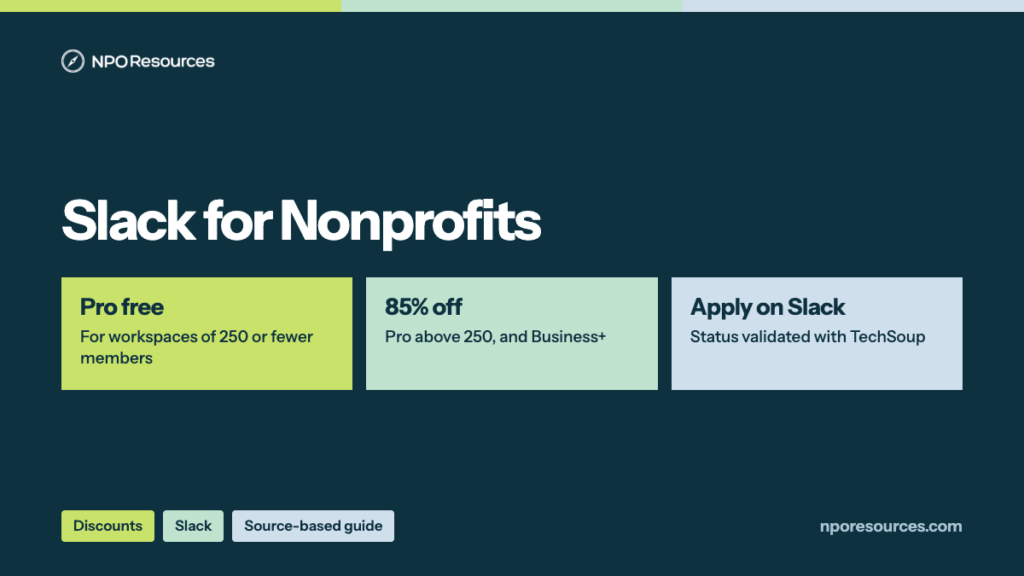
The short answer: Slack for Nonprofits gives eligible workspaces of 250 or fewer members the Pro plan free, and 85% off above that size. What decides it isn’t your budget but two other things: how many members your workspace has, and what kind of organization you are, because Slack excludes several organization types outright. This guide covers the price, who qualifies, the steps, and what to do if you already pay, all from Slack’s official pages (dates in the sources list).
Key takeaways
- Slack for Nonprofits gives workspaces with 250 or fewer members a free Pro upgrade, and 85% off Pro above that size. Business+ is 85% off at any size (Slack, 9 November 2026).
- For a team of 10, Pro would otherwise cost $870 a year on annual billing, by our arithmetic.
- Slack excludes churches and other religious organizations, schools, government offices, hospitals, private foundations, and political or lobbying groups. Being affiliated with a religious organization isn’t disqualifying on its own.
- A Workspace Owner can apply on Slack’s own form; Slack partners with TechSoup to validate your charitable status. Approved workspaces get the upgrade within three days.
- Slack doesn’t refund fees paid before approval, so apply before you renew a paid plan.
Watch: the whole process in under three minutes
Who qualifies, who is excluded, what Pro and Business+ cost, and the steps to apply on Slack. English captions available.
Stuck on a step?
Free help from connectNPO, the team behind NPO Resources. No cost, no sales pitch. Tell us where you’re stuck and we’ll reply by email. Your organization applies itself; we never ask for passwords, bank details or your EIN.
On this page
- Slack nonprofit pricing: free Pro and 85% off
- Who counts toward the 250 members
- Who qualifies for Slack for Nonprofits
- What to have ready
- How to apply for Slack for Nonprofits, step by step
- Already paying for Slack?
- After approval: what Slack’s pages don’t answer
- Sources reviewed
- Frequently asked questions
- Related NPO Resources guides
Slack nonprofit pricing: free Pro and 85% off
Slack’s nonprofit help article offers “free or discounted plan upgrades to eligible organizations.” Here is what that means against the regular prices on Slack’s pricing page, both read on 9 November 2026:
| Plan | Regular price per user a month | 250 members or fewer | More than 250 members |
|---|---|---|---|
| Free | $0; 90 days of message history | Free for everyone | Free for everyone |
| Pro | $7.25 paying annually, $8.75 paying monthly; unlimited message history | Free upgrade | 85% off |
| Business+ | $15 paying annually, $18 paying monthly | 85% off | 85% off |
| Enterprise | Contact Slack | — | Discount possible for deployments of 1,000+ members; contact Slack |
By our arithmetic, an eligible team of 10 pays $0 for Slack Pro instead of $870 a year ($7.25 × 10 × 12). The same team on Business+ would pay about $270 a year with the Slack nonprofit discount of 85%, instead of $1,800. Think of a community hall that’s free for any group up to the number on the capacity sign: at 250 members or fewer, Slack Pro for nonprofits costs nothing; above that, you pay 15% of the price.
Why it matters for a small team: on Free, Slack’s pricing page says “Messages are saved and searchable for 90 days. Upgrade to access the previous 12 months messages.” Upgrading restores access to the previous 12 months of messages.
Who counts toward the 250 members
Slack’s nonprofit article doesn’t define “members” for the 250 limit, so it doesn’t say whether guests or inactive accounts count. What Slack does publish is its Fair Billing Policy for paid plans: Workspace Owners, Admins, Full members and Multi-Channel Guests are paid member types; Single-Channel Guests and bots are free; and you’re billed only for members who are actively using Slack. That’s a billing rule, not the nonprofit rule. If your workspace is near 250, ask Slack how it counts before you apply.
Who qualifies for Slack for Nonprofits
The 30-second check
- Does your organization hold valid charitable status with the IRS? Look it up in the IRS Tax Exempt Organization Search.
- Is it outside Slack’s excluded types below? Churches and religious organizations, schools, government, hospitals, private foundations, political groups.
- Can a Workspace Owner submit the application?
Three yeses: you look eligible, and Slack makes the final call. Unsure? Read the details below, or ask us.
Slack welcomes applications from organizations “that hold a valid charitable status with either the IRS (in the United States), a local tax service/charity commission, or a local TechSoup Global partner.” Then it lists who can’t take part:
Can apply
- Organizations with valid charitable status from the IRS
- Outside the U.S., status from a local tax service, charity commission or TechSoup Global partner
- Organizations affiliated with a religious organization, if they meet Slack’s other rules
Not eligible
- Churches, associations of churches and other religious organizations
- Schools, colleges and related groups (Slack points them to Slack for Education)
- Government offices
- Hospitals and health insurance or group health plan organizations
- Private grant-making, independent or operating foundations
- Legislative or political activity organizations, and organizations that attempt to influence public opinion
Two conduct rules. Slack also says an organization may not discriminate, and may not “Promote a particular religious affiliation, dogma, or doctrine as part of its mission or in exchange for its services.” Its own words on the nuance: “being affiliated with a religious organization is not in itself disqualifying.” A food bank founded by a congregation may fit, while a congregation itself falls under Slack’s excluded list. If your exemption lapsed for missing filings, fix that first; our Form 990-N guide explains how it happens.
What to have ready
- A Workspace Owner. Slack says “a Workspace Owner can submit an application.” If your organization isn’t on Slack yet, create the workspace first.
- Your organization’s details. Slack lists legal name, location, website, and a brief description of what you do.
- One application per workspace. If you run more than one workspace, each needs its own application.
- Sales tax (a billing step after you apply): Slack asks you to check whether it assesses sales tax in your state (U.S. only), add your name and address to your billing information, and send your exemption certificate(s) to [email protected]. Slack describes this as a step after you apply; the review of your charitable status is done with TechSoup.
Our nonprofit tech discount application checklist covers the records other discount programs ask for, and our TechSoup page explains the validation service Slack uses.
How to apply for Slack for Nonprofits, step by step
These steps follow Slack’s help article, read on 9 November 2026. The application form sits behind a Slack sign-in, so we describe it in words rather than show it.
1Have a Workspace Owner apply
Slack says “a Workspace Owner can submit an application,” a bit like the leaseholder signing for the whole building. New to Slack? Create the workspace first.
2Open the Slack for Nonprofits form
Go to the application form while signed in to Slack, for the workspace you want upgraded.
3Enter your organization’s details
Legal name, location, website and a short description of your work, plus whatever else the form asks for.
4Wait for validation
Slack “partners with TechSoup, a service that helps review and validate nonprofit and charity status.” You apply on Slack’s form; TechSoup’s Slack page says the offer is “available to our community directly through Slack.”
5Watch for the approval email
Slack says approved organizations get an email confirmation, and “we’ll apply your free upgrade or discount within three days.”
6Complete Slack’s tax checklist
After you apply, Slack asks you to check whether it assesses sales tax in your state (this item is U.S. only), add the organization’s name and address to billing information, and add Slack’s full name and address to the Vendor or Seller section of your exemption certificate(s) and send them to [email protected].
Not approved? Slack says you’re welcome to apply again if your organization’s charitable status changes, and to keep using the Free plan “for as long as you’d like.”
Already paying for Slack?
The nonprofit discount works like a coupon at a store that doesn’t reprice receipts you’ve already paid. Slack’s words: “We do not offer refunds for subscription fees paid prior to being approved for the Slack for Nonprofits program.”
After approval: what Slack’s pages don’t answer
We recheck this page against the official sources. Last checked: 9 November 2026.
NPO Resources is run by connectNPO, a company that provides website and accounting services to nonprofits. This guide and the help offered here are free and separate from those services. We are not affiliated with Slack or TechSoup, and we receive nothing when your organization signs up.
Sources reviewed
We read the sources below on 9 November 2026. Prices and rules change; check the source before relying on any figure here.
- Slack Help Center: Apply for the Slack for Nonprofits discount (offer, eligibility, exclusions, how to apply, tax steps, review, billing changes), Slack’s Fair Billing Policy (paid and free member types).
- Slack: Pricing (Free, Pro and Business+ prices, monthly and annual), Pro plan.
- TechSoup: Slack for Nonprofits (offer available directly through Slack, with TechSoup Validation Services).
Also linked: the IRS Tax Exempt Organization Search, for checking your own status.
Frequently asked questions
For eligible workspaces with 250 or fewer members, yes: Slack for Nonprofits gives a free upgrade to the Pro plan. Above 250 members, Pro is 85% off, and Business+ is 85% off at any size. Checked on 9 November 2026.
Nothing for Pro if your workspace has 250 or fewer members. Otherwise 85% off the regular price, which on 9 November 2026 was $7.25 per user a month for Pro and $15 for Business+, paying annually. A team of 10 on Business+ would pay about $270 a year, by our arithmetic.
Organizations with valid charitable status from the IRS, or outside the U.S. from a local tax service, charity commission or TechSoup Global partner. Churches and other religious organizations, schools, government offices, hospitals, private foundations, and political or lobbying groups are not eligible.
Not under Slack’s current rules. Slack excludes churches, associations of churches and other religious organizations. Being affiliated with a religious organization is not in itself disqualifying, but an organization may not promote a particular religious affiliation, dogma or doctrine as part of its mission or in exchange for its services.
Partly. You apply on Slack’s own form, which a Workspace Owner can submit. Slack partners with TechSoup to review and validate your nonprofit status.
Slack doesn’t give a review time. Once you’re approved, it sends an email confirmation and applies the free upgrade or discount within three days.
No. Slack does not refund subscription fees paid before the workspace is approved for Slack for Nonprofits. Apply before your next renewal, and ask Slack support about your current plan before changing it.
Related NPO Resources guides
- Slack program fact sheet — the offer at a glance.
- Nonprofit discounts and tech access — compare discount programs side by side.
- Zoom for Nonprofits and Google Workspace for Nonprofits — meetings and email for the same team.
- Microsoft 365 for Nonprofits, Canva for Nonprofits and Adobe for Nonprofits — more programs explained the same way.
- QuickBooks for Nonprofits — QuickBooks Online through TechSoup for a yearly admin fee, and how to set it up.
- Google for Nonprofits — one account for Workspace, Ad Grants and YouTube, and which login to use.
- Claude AI for Nonprofits and ChatGPT for Nonprofits — two AI discounts.
- Docusign for Nonprofits — 30% off annual eSignature plans, and how to apply.
- Nonprofit tech discounts — how to check other software programs at the source.