
Important note: This article is general educational information, not legal, tax, or purchasing advice. Prices and eligibility rules for Microsoft 365 for nonprofits are set by Microsoft, and they change. Confirm them on the official pages linked below before you rely on them.
The renewal notice says your Microsoft 365 Business Premium licenses won’t renew. For years those seats cost your nonprofit nothing, and now a board member is asking whether the email is about to stop, and whether anyone has to pay. Some of you found out a different way: someone couldn’t open Outlook on a Monday morning.
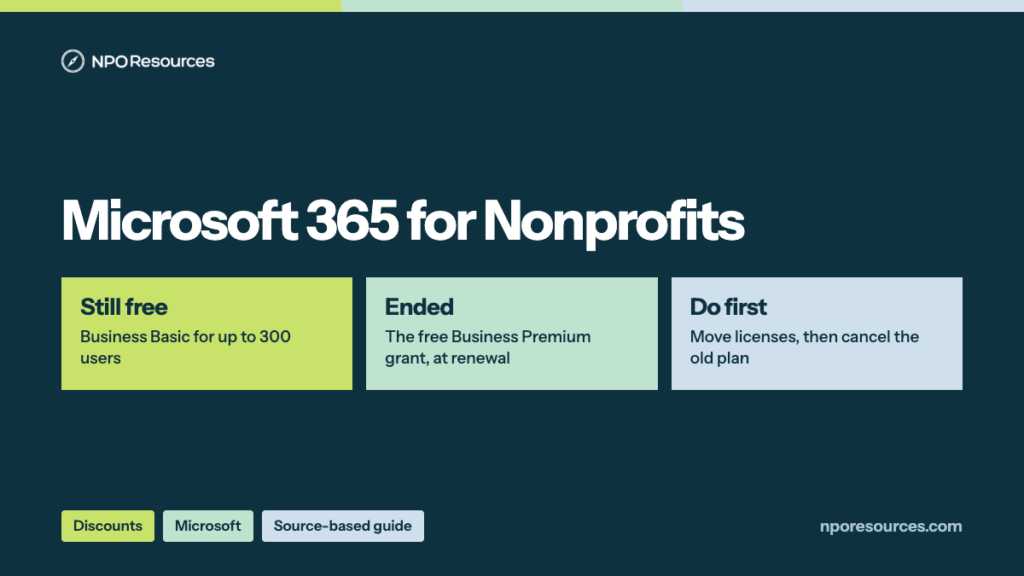
The short answer: Microsoft 365 for nonprofits is still free, but in a smaller version. Microsoft ended the free Business Premium grant and kept a free grant of Business Basic for up to 300 users, plus discounted paid plans. Nothing moves over by itself: if your organization was on the old grant, someone has to swap the licenses by hand before the renewal date. This guide shows what’s free and what it costs now, from Microsoft’s nonprofit pricing page as we read it on 8 November 2026; how to register and claim the grant; and how to make the switch without losing anyone’s mailbox.
Key takeaways
- The free Business Premium grant is gone: Microsoft says those licenses expire on your next renewal date and won’t renew. What stays free is Microsoft 365 Business Basic, for up to 300 users.
- Paid plans at nonprofit prices, checked 8 November 2026: Business Standard $3.50 and Business Premium $5.50 per user per month, paid yearly. Microsoft calls the Premium price a 75% discount.
- Nothing switches over by itself. Assign the new licenses in the Microsoft 365 admin center before you cancel the old subscription, because Microsoft deletes a canceled subscription’s data.
- Approval turns nothing on. You claim the grant from the Nonprofit Hub; the “Nonprofit Portal (Nonprofit Staff Pricing) Trial” that may appear in your account is not a grant.
- Keeping the grant has rules: granted seats are for paid staff and unpaid executives, at least 85% of them must be in active use, and you attest to Microsoft’s rules regularly.
Watch: the whole process in under three minutes
What is still free, what the paid plans cost, who qualifies, the 5 steps in the Nonprofit Hub, and moving users off the old grant. English captions available.
Stuck on a step?
Free help from connectNPO, the team behind NPO Resources. No cost, no sales pitch. Tell us where you’re stuck and we’ll reply by email. Your organization applies itself; we never ask for passwords, bank details or your EIN.
On this page
- Microsoft 365 for nonprofits: what’s free and what it costs now
- Who qualifies, and who can use a license
- What to have ready
- How to register and claim it, step by step
- Your Business Premium grant is ending: what to do
- How to keep the grant
- Errors and how to fix them
- Sources reviewed
- Frequently asked questions
- Related NPO Resources guides
Microsoft 365 for nonprofits: what’s free and what it costs now
Microsoft’s nonprofit updates page, under its July 1, 2025 heading, says the Business Premium grant “has been discontinued. Your licenses will expire on your next renewal date and will not renew.” The older Office 365 E1 grant ended the same way, though Microsoft’s FAQ still mentions E1 grants through an Enterprise Agreement in limited cases. In their place, Microsoft says it continues to provide “up to 300 granted licenses of Microsoft 365 Business Basic and discounts of up to 75% on many Microsoft 365 offers to nonprofits.”
Here is what Microsoft’s nonprofit pricing page showed on 8 November 2026. Every plan is for 1 to 300 users and includes 1 TB of OneDrive storage per user and Teams.
| Plan (Nonprofit Staff Pricing) | Nonprofit price | Office apps | Mailbox |
|---|---|---|---|
| Business Basic | Grant: free up to 300 users | Web and mobile apps only | 100 GB, plus 50 GB archive |
| Business Standard | $3.50 per user per month, paid yearly | Desktop, web and mobile, on up to 5 PCs or Macs, 5 tablets and 5 phones | 100 GB, plus 50 GB archive |
| Business Premium | $5.50 per user per month, paid yearly | Same as Standard, plus device management and advanced threat protection | 100 GB, plus 1.5 TB archive |
Both paid prices are annual commitments. For comparison, Microsoft’s regular business plans page listed Business Standard at $14.00 per user per month, paid yearly, on the same day.
For a team of 10, that is $420 a year on Business Standard or $660 a year on Business Premium, by our arithmetic. Microsoft’s nonprofit home page puts the Premium price this way: “Microsoft 365 Business Premium is now available at a 75% discount for eligible nonprofits.” The same page lists Microsoft 365 Copilot at a 15% nonprofit discount.
More than 300 staff? The Business plans stop at 300 users. Microsoft’s enterprise nonprofit pricing listed Microsoft 365 E3 at $9.75 and E5 at $24.00 per user per month, paid yearly, on 8 November 2026.
Who qualifies, and who can use a license
The 30-second check
- Is your organization recognized as a 501(c)(3)? Look it up in the IRS Tax Exempt Organization Search. Public libraries and public museums can also qualify.
- Is it something other than a government agency, a school or university, a hospital or health system, or one of the other excluded types below?
- Will a staff member or a strategic volunteer do the registration, rather than your IT company?
Three yeses: you can most likely apply today. A no, or you’re unsure: read the details below, or ask us.
Microsoft’s eligibility page asks for a nonprofit or non-governmental organization with recognized charitable status in your country, “(Example: 501(c)(3) in the U.S.)”. A Microsoft validation partner checks your registration against those rules; Microsoft doesn’t name the partner publicly.
Eligible
- Nonprofits with recognized charitable status (501(c)(3) in the U.S.)
- Public libraries that serve everyone free of charge
- Public museums
- Specific U.S. rural hospitals and clinics that Microsoft lists by type
Not eligible
- Government agencies, including the United Nations
- Schools, colleges and universities
- Most hospitals and health systems
- Banks, insurers and other financial institutions
- Trade associations and professional sports organizations
- Political, labor and fraternal groups
- “Nonprofit Organizations whose activities focus on influencing public policy”
Who can use the free seats. Read this rule before you assign anyone a license. Microsoft’s pricing page FAQ says nonprofit grants are permitted only for “paid nonprofit employees and unpaid executive staff who act as nonprofit leadership.” Its eligibility page names those unpaid roles: the board of directors, president, officer, executive director and executive program directors. Volunteers can use discounted licenses, not granted ones, or, as Microsoft’s nonprofit FAQ puts it, they “can be invited as external guests using a personal Microsoft account.” Program participants, members and donors can’t use nonprofit licenses at all.
Who registers. “The person completing the nonprofit registration must be an employee or strategic volunteer of the nonprofit.” Microsoft adds that a third-party IT provider can’t register on your behalf. Your IT partner can help afterward, but the application is yours. If your 501(c)(3) status lapsed for missing filings, fix that first; our Form 990-N guide explains how it happens.
What to have ready
1. Legal name, address and EIN
Exactly as your official records show them. Microsoft lists “Mismatched legal identifiers or incorrect tax documentation” among the common causes of delay.
2. A real website
Microsoft’s tip: “Use a real, public-facing domain for your website (not a social media page)”. A Facebook page slows validation down.
3. A real phone number
The form asks for a phone number “not a VoIP or call-forwarding service”. Use a mobile or landline that someone answers.
4. One tenant, and its admin
“Microsoft for Nonprofits allows one validated grant tenant per organization.” If you already use Microsoft 365, register that tenant with a global admin login; don’t start a second one.
5. An inbox you watch
The contact email gets a 6-digit code and every status update. Check junk folders; Microsoft names unverified email and phone as another common delay.
A tenant is your organization’s Microsoft 365 account: the users, mailboxes and licenses that live under one admin address such as [email protected]. Our nonprofit tech discount application checklist covers the same records for other programs, so you only gather them once.
How to register and claim it, step by step
These steps follow Microsoft’s registration guide and its Microsoft 365 grant page, read on 8 November 2026. Steps 1–4 get your organization validated; steps 5–6 turn the grant on. Think of approval as a library card: it proves you can borrow, but you still have to check out the book. The account screens need a nonprofit’s own sign-in, so we describe them in words rather than show them.
1Pick the right door in the Nonprofit Hub
Go to the Microsoft Nonprofit Hub, which Microsoft’s FAQ still calls the Nonprofit Portal in places. No Microsoft 365 yet? Select Apply, which creates a new tenant. Already on Microsoft 365, including the old grant? Select Sign in to your Nonprofit Hub with your admin credentials instead; Microsoft says this keeps “your existing Microsoft 365 environment, licensing, and users.”
2Fill in the registration
New tenants go through four parts: your contact details and country (for U.S. organizations, this adds an EIN field later in the form), a 6-digit code sent to your email, your organization’s legal name, website, mailing address, phone and legal identifier, and finally a new admin username such as [email protected]. Existing tenants fill in the same organization details after signing in.
3Attest and submit
You confirm Microsoft’s nonprofit compliance statement: that you’ll use the offers only for eligible organizational purposes and agree to the terms of use. Then validation begins.
4Wait for validation, and watch your inbox
You get two emails, “Eligibility Process Started” and “Eligibility Request in Review,” then an approval email. Microsoft gives two timelines. Its eligibility guide says “This process can take up to 3 business days,” longer if the validation partner needs more information. Its nonprofit FAQ says “The process can take up to seven business days,” depending on your country and how fast you answer document requests.
5Claim the Business Basic grant
Sign in to the Nonprofit Hub and open the Microsoft 365 page. Choose the grant and click Buy Now. The button says that even for the free grant. You may also notice a subscription called “Nonprofit Portal (Nonprofit Staff Pricing) Trial.” Microsoft’s eligibility guide says it “does not include usable Microsoft services and is not a grant”; it doesn’t mean you’re set up.
6Activate it and assign licenses
Activate the offer in the Microsoft 365 admin center, then create users and assign each one a license. Only a global admin can do this: Microsoft says “Only global admins can activate grants or update key profile data.”
Your Business Premium grant is ending: what to do
If your organization was on the free Business Premium grant, treat the renewal date like a moving day. You move your people into the new licenses first, and only then hand back the keys to the old ones. Do it in the other order and the boxes go out with the old lease: Microsoft’s pricing page says “When a subscription is canceled, all associated data will be deleted.” Microsoft says it would “strongly recommend transitioning users to a different Microsoft 365 offer for nonprofits, before the subscription is canceled, to avoid disruption and data loss.”
The updates page gives the steps. You can ask your Microsoft partner to do them, or “manually complete the following steps within the Microsoft 365 admin center”:
1. Get the new licenses. In the admin center, select the Microsoft 365 Business Basic grant or another Microsoft 365 offer for nonprofits.
2. Confirm they arrived. Check that the licenses are present in your tenant before you touch anyone’s account.
3. Move the people. Select every user with a Business Premium license and replace it with Business Basic or the other nonprofit offer you chose. Check archive sizes first: Business Premium includes a 1.5 TB archive, Business Basic and Standard 50 GB.
4. Then cancel the old one. Only after everyone has a new license, select the Business Premium subscription and cancel it.
Which plan should people move to? It depends on how each person works, and you can mix plans in one tenant. Here is the question we’d ask about each role:
Three more situations:
- More than 300 people on the old E1 grant. The Business Basic grant stops at 300. Microsoft says organizations with “more than 300 active users on the legacy Office 365 E1 grant” can submit an inquiry to talk with a Microsoft representative.
- You started a regular free trial by mistake. The footnotes on Microsoft’s pricing page say its one-month free trials convert to paid automatically, and “A credit card is required to sign up.” Claim the grant from the Nonprofit Hub instead, as in step 5 above.
- You already paid for a plan. Microsoft’s pricing page says that once a paid subscription begins, “you have a 7-day cancellation window to receive a prorated refund.” Move your users before you cancel anything.
How to keep the grant
The grant works like a plot in a community garden: it’s yours as long as you tend it. Microsoft’s FAQ says “Microsoft requires nonprofits to manage within 85% active usage of all granted assigned licenses,” and organizations that fall short risk disqualification for future grants.
To find inactive users, Microsoft points admins to the activity reports in the Microsoft 365 admin center, which you can export and sort. A short monthly habit beats a cleanup scramble, with one caution: save a departing person’s email and files before you free up their license. Microsoft’s former employee guide says that when you remove a license, “the former employee’s email, contacts, and calendar are retained for 30 days, and are then deleted permanently,” and describes converting the mailbox to a shared mailbox instead. And keep your nonprofit profile in the Hub current; Microsoft notes that changing your legal name or identifier can trigger a new validation, and your profile is locked while it runs.
If your eligibility changes later, Microsoft’s FAQ says it “generally does not retroactively revoke or disable those licenses during the current committed term”, though you may lose nonprofit pricing at the next renewal.
Errors and how to fix them
Several of the errors below involve the tenant: the wrong one, a second one, or one nobody can sign in to. Microsoft’s advice is consistent across its pages: “If you lose access, don’t create a new tenant.” Grants can’t be moved or merged between tenants, so a fresh tenant starts the whole validation over.
Where to get help. Eligibility and grant questions go through the Nonprofit Hub’s Contact Us page, which opens a chat assistant that can file a support request for you. “Phone-based support is not currently available for nonprofit-specific inquiries.” Technical and billing questions go through the Microsoft 365 admin center (Microsoft’s support guide).
We recheck this page against the official sources. Last checked: 8 November 2026.
NPO Resources is run by connectNPO, a company that provides website and accounting services to nonprofits. This guide and the help offered here are free and separate from those services. We are not affiliated with Microsoft, and we receive nothing when your organization signs up.
Sources reviewed
We read every source below on 8 November 2026. Prices and rules change; check the source before relying on any figure here.
- Microsoft 365: Plans for nonprofits (Business Basic, Standard and Premium nonprofit prices, mailbox and device limits, FAQ, trial and refund terms), Enterprise plans for nonprofits (E3 and E5), Compare all business plans (regular Business Standard price).
- Microsoft for Nonprofits: Home (75% Premium discount, Copilot), Nonprofit eligibility (who qualifies, who registers, who can use a license), FAQ (validation time, 85% rule, active usage, eligibility changes, appeals).
- Microsoft Learn, Microsoft for Nonprofits: Updates (Business Premium and E1 grants discontinued, transition steps; updated December 17, 2025), Eligibility guidelines (updated May 6, 2026), Register a validated tenant, Access the Nonprofit Hub, Accessing M365 Grants, Nonprofit offerings and products, Understanding your tenant, Accessing your tenant, Special nonprofit use cases (GoDaddy), Access nonprofit support. Microsoft 365 admin: Remove a former employee (30-day retention after a license is removed).
- IRS: Tax Exempt Organization Search.
Frequently asked questions
Yes, in a smaller form. Microsoft gives eligible nonprofits Microsoft 365 Business Basic free for up to 300 users, with web and mobile Office apps, email and Teams. The free Business Premium grant has ended; Business Standard and Business Premium are now discounted rather than free.
Microsoft discontinued it. Existing grant licenses expire on the organization’s next renewal date and do not renew. Microsoft recommends moving users to Business Basic or another nonprofit offer in the Microsoft 365 admin center before the old subscription is canceled, because a canceled subscription’s data is deleted.
On 8 November 2026, Microsoft listed Business Standard at $3.50 and Business Premium at $5.50 per user per month, paid yearly, with Business Basic free up to 300 users. Organizations with more than 300 staff can use Microsoft 365 E3 at $9.75 or E5 at $24.00 per user per month, paid yearly.
Nonprofits with recognized charitable status, such as 501(c)(3) in the U.S., public libraries, public museums and certain U.S. rural hospitals and clinics. Government agencies, schools and universities, most hospitals, financial institutions, trade associations, professional sports organizations, political, labor and fraternal groups, and nonprofits focused on influencing public policy are not eligible.
Microsoft gives two figures. Its Microsoft Learn eligibility guide says up to 3 business days, longer if more information is needed. Its nonprofit FAQ says up to seven business days, depending on country requirements and how quickly the organization answers document requests.
No. Microsoft permits granted licenses only for paid employees and unpaid executive staff, such as board members and the executive director. Volunteers can use discounted licenses, or be invited as external guests with a personal Microsoft account.
An administrative subscription that may appear in your tenant after approval. Microsoft says it does not include usable Microsoft services and is not a grant. To get email and Office apps you still claim Business Basic or a discounted plan from the Nonprofit Hub and assign licenses.
Related NPO Resources guides
- Microsoft for Nonprofits — the program at a glance: Microsoft 365, Azure credit, Exchange and Cloud for Nonprofit.
- Nonprofit discounts and tech access — compare discount programs side by side.
- Google Workspace for Nonprofits — the free alternative, and how to activate it.
- Canva for Nonprofits — free Canva Pro for one team of up to 50, and how to apply.
- Zoom for Nonprofits — 50% off annual Pro and Business plans, and how to apply.
- Adobe for Nonprofits — free Express Premium, discounted Acrobat Pro and Creative Cloud, and where to apply.
- Slack for Nonprofits — free Pro for workspaces of up to 250 members, and how to apply.
- QuickBooks for Nonprofits — QuickBooks Online through TechSoup for a yearly admin fee, and how to set it up.
- Google for Nonprofits — one account for Workspace, Ad Grants and YouTube, and which login to use.
- Claude AI for Nonprofits and ChatGPT for Nonprofits — two AI discounts verified the same way.
- Docusign for Nonprofits — 30% off annual eSignature plans, and how to apply.
- Nonprofit tech discounts — how to check other software programs at the source.
- Nonprofit tech discount application checklist — the records these programs ask for.